
Algo Trading
How I Cut My AWS EC2 Hosting Costs Using Free AWS Automation

FabTrader
Article overview
If you’re an algo trader like me who runs trading bots or Streamlit dashboards on AWS EC2, you already know the pain — your EC2 instance keeps running even when the markets are closed. And that means you’re paying for idle time.
If you’re an algo trader like me who runs trading bots or Streamlit dashboards on AWS EC2, you already know the pain — your EC2 instance keeps running even when the markets are closed. And that means you’re paying for idle time.
For the Indian stock market, trading hours are from 9:15 AM to 3:30 PM IST. But EC2 billing doesn’t care whether your algo is trading or sleeping — it charges as long as the instance is running.
Today, I’m going to walk you through exactly how I reduced my monthly AWS bill by almost half — from ₹850 to around ₹425–₹475 — using nothing but AWS Lambda and EventBridge, which are absolutely free to use!
And the best part? This setup has been running flawlessly for months, without a single hiccup.
Why Shut Down Your EC2 Instance Daily?
Apart from saving money, shutting down your EC2 instance after market hours has other benefits:
- Cost Efficiency – You only pay for the time your instance is actually running.
- Clean Environment – A daily reboot helps kill ghost processes and keeps your instance fresh and responsive.
- Mental Peace – You know your trading infrastructure is running only when it needs to.
Of course, AWS offers some paid utilities to manage instance scheduling. But why pay for something you can easily automate for free?
Free Solution: AWS Lambda + EventBridge
I use a combination of AWS Lambda (for automation scripts) and AWS EventBridge (for scheduling them).
Here’s how the setup works:
- EC2Start → Starts the EC2 instance every morning on weekdays.
- EC2Stop → Stops the EC2 instance every evening on weekdays.
- EC2InstanceDescribe → Fetches the new Public IP and DNS Name after the instance restarts, and sends it to my Telegram account automatically.
Step 1: Create a new Role
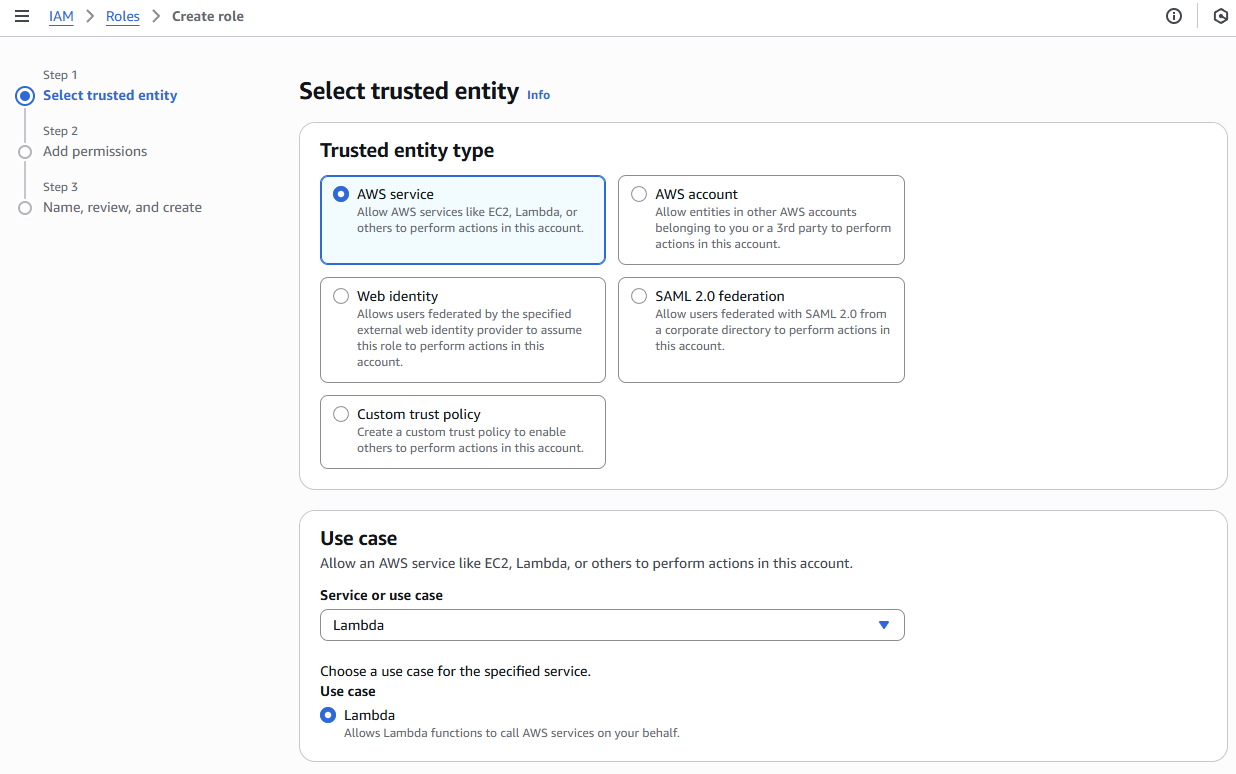
Before the above could be done, the first step is to create an appropriate Role that has sufficient permissions to do these tasks. To do this, go to 'IAM' and create a new rule like so..
In the Permission Policies, search for 'AmazonEC2FullAccess' and assign this policy to the new user
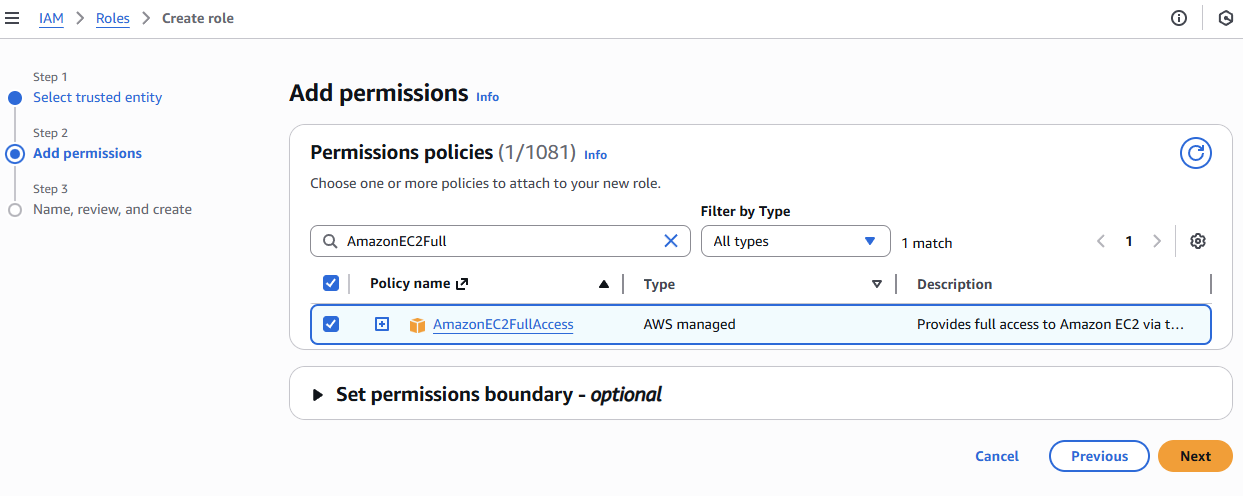
Important : Once this new role is created, remember to use this role when creating the automation rules using Event Bridge, explained in Step 3.
Step 2: Create Lambda Function to automate the functions
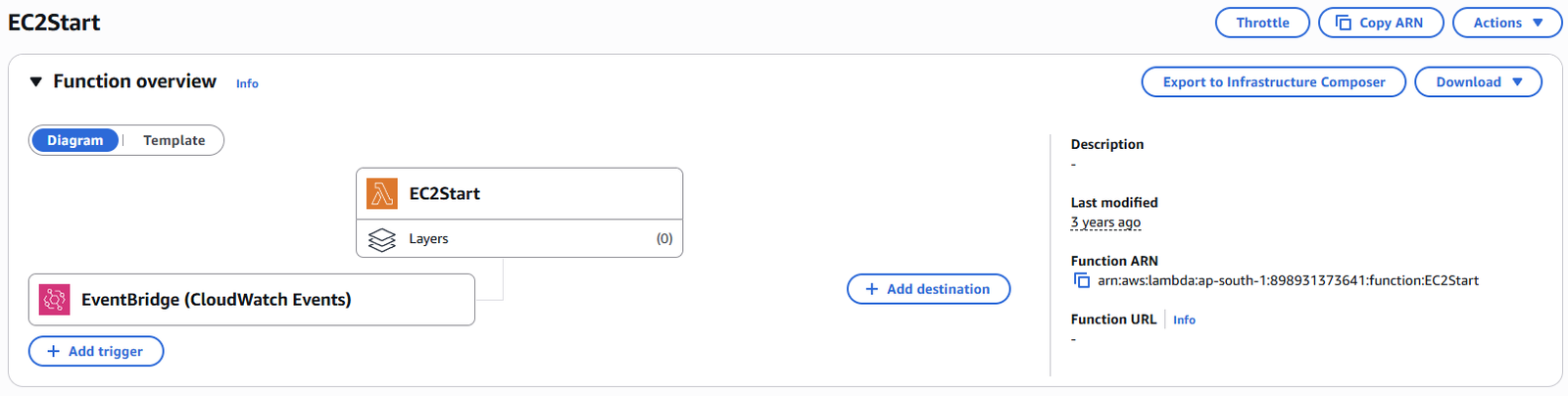
Lambda Function: EC2Start
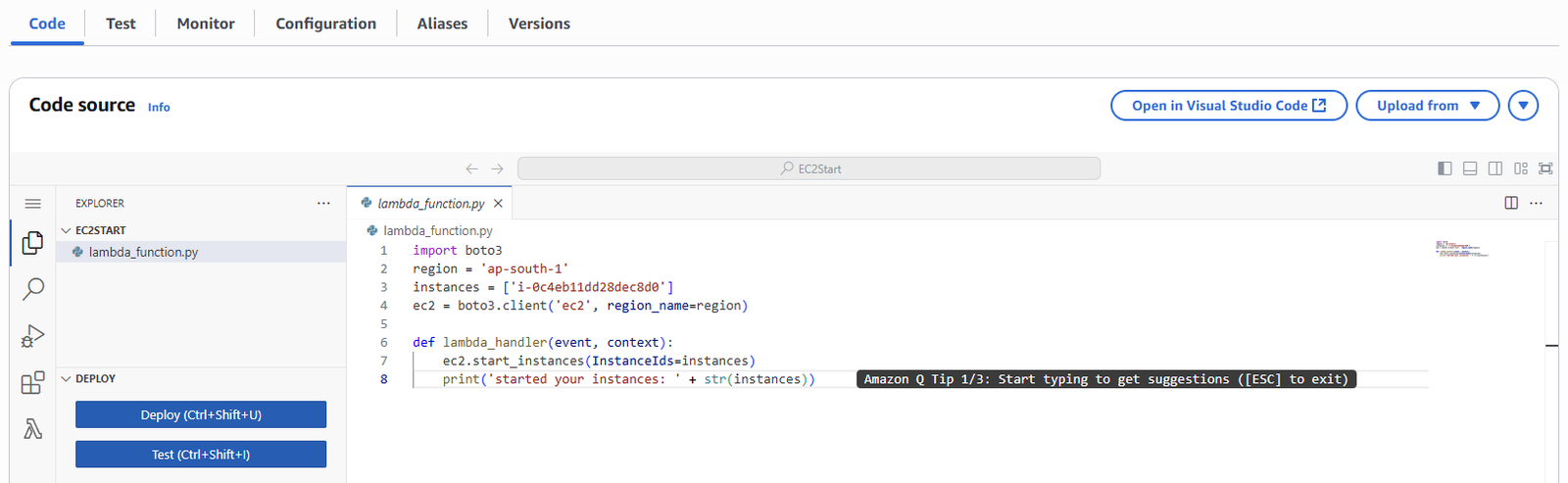
import boto3
region = 'ap-south-1'   		# Replace with your EC2 region
instances = ['i-0c4eb11dd28dexxxx']  	# Replace with your EC2 instance Id
ec2 = boto3.client('ec2', region_name=region)

def lambda_handler(event, context):
    ec2.start_instances(InstanceIds=instances)
    print('started your instances: ' + str(instances))
After you create this function, go to 'Configuration' tab and set the timeout settings to '10 Secs'. You should do this for all 3 Lambda functions.
Lambda Function: EC2Stop
This function stops your instance automatically every evening once the market closes.
import boto3
region = 'ap-south-1' 			# Replace with your EC2 region
instances = ['i-0c4eb11dd28dexxxx']	# Replace with your EC2 instance Id
ec2 = boto3.client('ec2', region_name=region)

def lambda_handler(event, context):
    ec2.stop_instances(InstanceIds=instances)
    print('stopped your instances: ' + str(instances))
Lambda Function: EC2InstanceDescribe
When an EC2 instance is stopped and restarted, its Public IP changes — which can be a problem if you access your app via a static link.
To handle this, I use a third function that sends me the updated IP and DNS details via Telegram every morning.
import boto3
import urllib3
region = 'ap-south-1'  # Replace with your region
instances = ['YOUR EC2 INSTANCE ID GOES HERE']
ec2 = boto3.client('ec2', region_name=region)

def lambda_handler(event, context):
    myec = ec2.describe_instances()
    for reserves in myec['Reservations']:
        for printout in reserves['Instances']:
            if printout['InstanceId'] not in instances:
                continue

            base_url = 'https://api.telegram.org/bot'
            bot_token = "YOUR BOT TOKEN GOES HERE"
            bot_chatID = "YOUR CHAT ID GOES HERE"
            base_msg = base_url + bot_token + '/sendMessage?chat_id=' + bot_chatID + '&parse_mode=Markdown&text='
            http = urllib3.PoolManager()

            if printout['PublicDnsName'] == '':
                bot_message = '*** AWS Bot Buddy ***\nAWS Instance is down. Unable to fetch DNS Info'
            else:
                bot_message = '*** AWS Bot Buddy ***\n'
                bot_message += f"Instance Id : {printout['InstanceId']}\n"
                bot_message += f"Name : {printout['KeyName']}\n"
                bot_message += f"DNS : {printout['PublicDnsName']}\n"
                bot_message += f"IP : {printout['PublicIpAddress']}\n"
                bot_message += f"Streamlit Link1 : {printout['PublicIpAddress']}:8501\n"
                bot_message += f"Streamlit Link2 : {printout['PublicIpAddress']}:8502"

            send_text = base_msg + bot_message
            http.request('GET', send_text)
Step 3: Scheduling Everything with EventBridge
Now that the Lambda functions are ready, the next step is to schedule them using Amazon EventBridge.
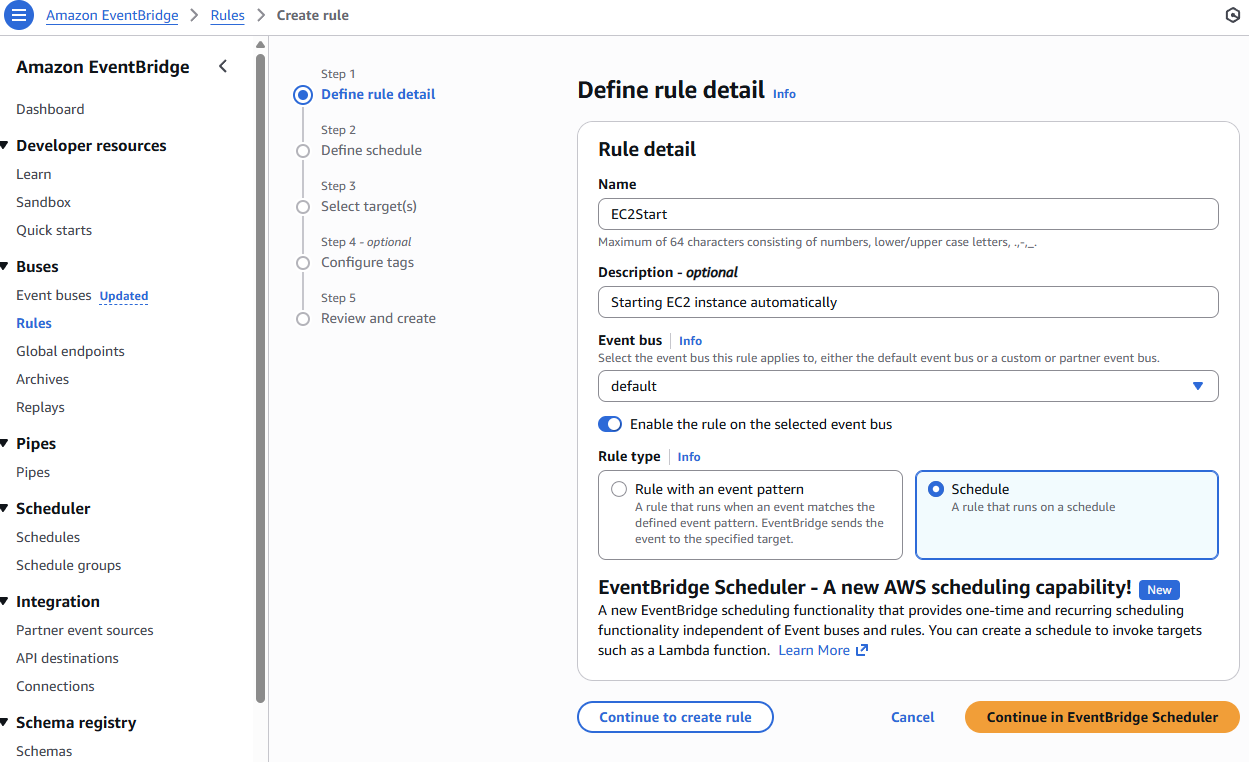
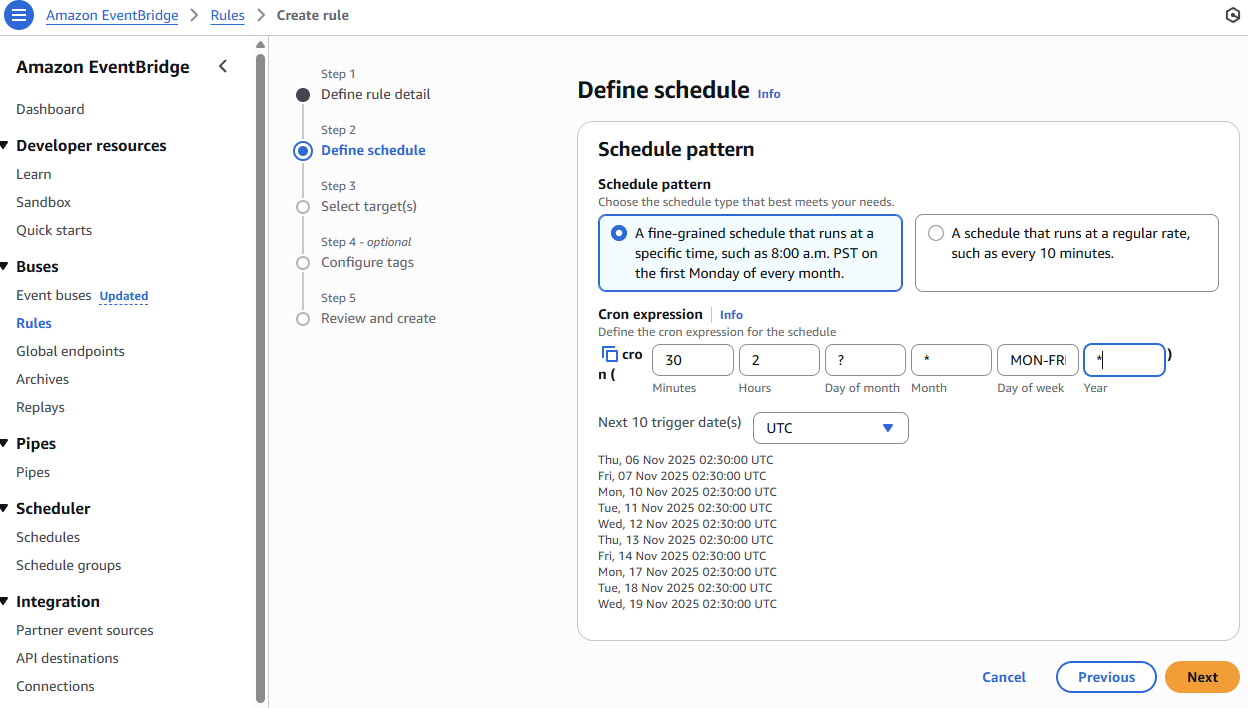
After you click on 'Continue to create rule', input the Cron timing to schedule this event.
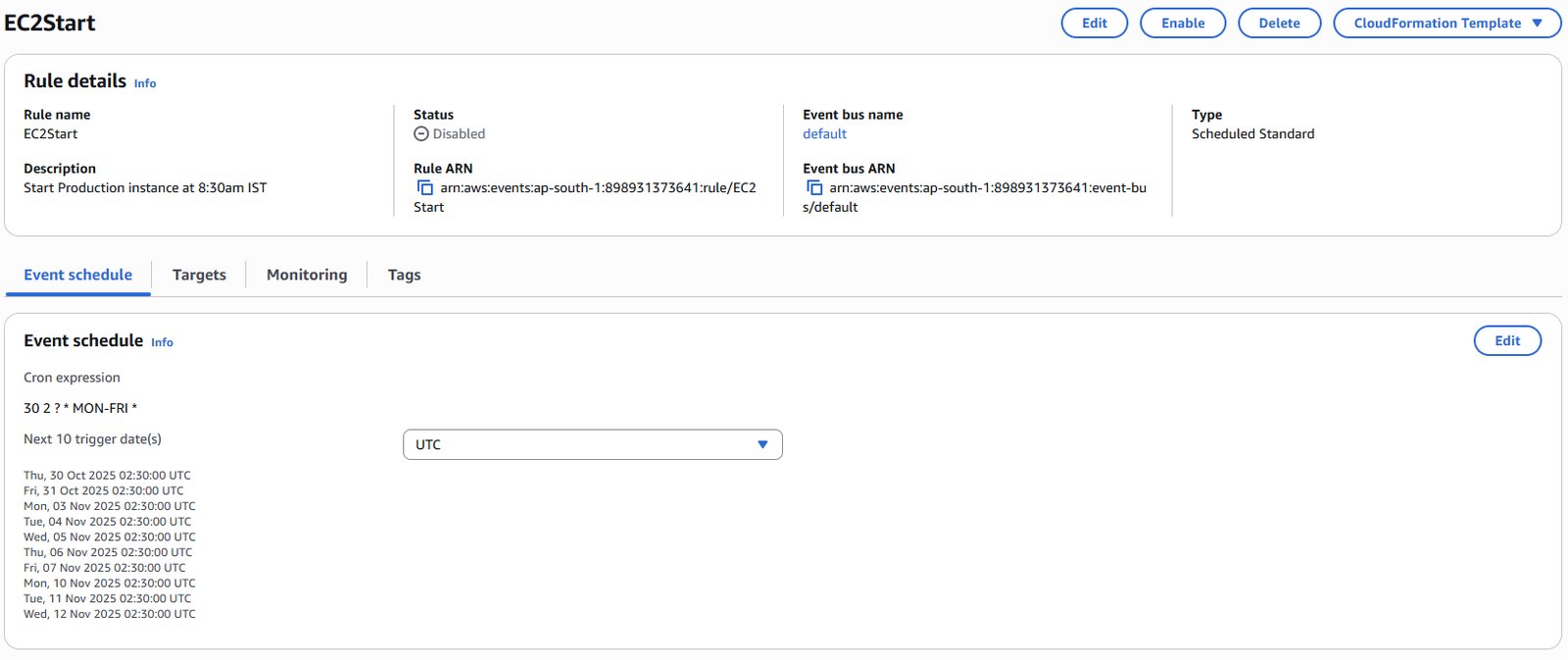
The Rule once created would look like this below.
Go ahead and create the other two events for the Stop and EC2InstanceDescribe functions as well and schedule them appropriately.
30 2 ? * MON-FRI *Starts the instance every weekday at 2:30 AM UTC (8:00 AM IST)EC2StartEC2InstanceInfoMailer35 2 ? * MON-FRI *Sends IP/DNS info to Telegram at 2:35 AM UTC (8:05 AM IST)EC2InstanceDescribeEC2Stop30 13 ? * MON-FRI *Stops the instance every weekday at 1:30 PM UTC (7:00 PM IST)EC2StopThat’s it!
Once set up, AWS automatically starts, stops, and notifies you — all without lifting a finger.
Real Results
Since implementing this system, my monthly AWS bill for a micro EC2 instance dropped from around ₹850 to ₹425–₹475 — a solid 40–50% savings. And it’s been 100% reliable. Not even a single failed trigger since I deployed it.
Final Thoughts
This is the exact setup I use to manage my algo trading infrastructure on AWS.
There might be more sophisticated or paid ways to do it — but this simple, free automation works beautifully, and has stood the test of time.
If you’re hosting algos or trading dashboards on EC2, give this approach a try. You’ll not only save money but also ensure your trading environment stays lean, clean, and reliable.
More from Algo Trading
Algo Trading Cost in India: How I Built a Reliable Setup for ₹150/Month
Wondering how much algo trading costs in India? In this article, I break down the real expenses involved in running an algorithmic...
When Your Job Feels Shaky: Can Trading Become an Alternate Income Stream?
Can trading become a stable source of income in India? While many consider it during times of job uncertainty, the reality is...
How Much Capital Do You Really Need for Sustainable Trading Income in India?
How much capital is needed for sustainable trading income in India? This in-depth guide explores the realistic returns traders can expect, the...